
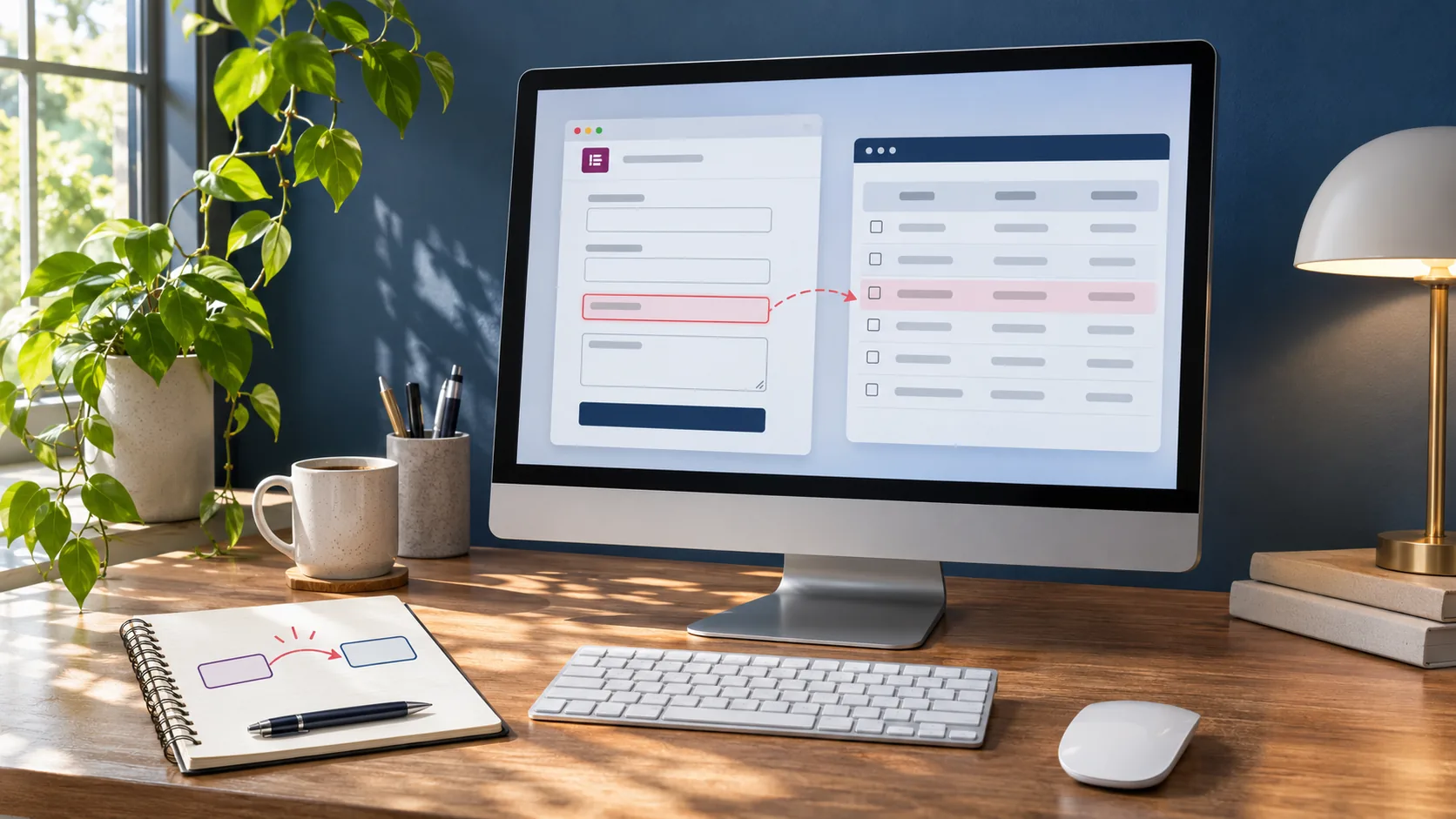
Illustrative workspace with a fictional enquiry form and lead queue.
A website enquiry can reach your inbox and still leave your sales team with work to do. Someone has to identify the right contact, paste the details into the CRM and decide who should follow up. An Elementor form to CRM integration can make that handoff predictable when the fields and ownership are agreed before development.
Start with one enquiry form and one destination. Ask a salesperson to show you what they do when a repeat customer requests a new quote. That conversation will expose decisions that a generic connector setup might leave open.
Choose what a submission should create
A contact identifies a person. A lead or deal describes a request your team can follow up, depending on how the CRM is configured. One property manager might send enquiries for two separate sites. Agree how the integration should recognise the existing contact and how each new request should appear for the sales team.
Ask which pipeline, stage and owner should be set. Include a fallback queue for requests that do not match an assignment rule. Give the team a realistic example and ask them to find it in the CRM view they actually use.
Write down the field mapping
Create a simple mapping sheet with the Elementor field ID, CRM field, expected format and what to do when a value is missing. Include name, email, mobile number with country code, enquiry type and the message when those are part of the brief. Map dropdown values to the CRM’s accepted options so renamed fields and labels are easy to trace.
Agree which sources should be visible on the record, such as the submitted page and campaign information the site is configured to collect. Decide which fields sales can edit later. Preserve useful context without sending personal form values to advertising or analytics tools.
Give repeat submissions an explicit rule
Decide how to find a matching contact, using an agreed key such as a normalised email address. Set a distinct identifier for the submission so a retry of the same delivery does not create another enquiry. Keep a second request eligible for its own record when the contact intentionally returns with a new project.
Document what happens if the address belongs to a shared office inbox or the enquiry includes a different phone number from the CRM. Sales can decide whether to update the contact, attach the value to this enquiry or review the mismatch manually.
Match the integration to the CRM's capabilities
Review the CRM’s supported connectors and API before choosing an implementation. A supported connector may be enough for simple field mapping. Rules for finding an existing contact, opening a new enquiry and reporting partial failure may require a workflow or a small server-side integration. Elementor includes webhook delivery in its form actions.
Keep credentials on the server or in the approved connector, with access limited to the required actions. Agree who manages access, who can inspect the delivery log and what information is appropriate to keep there.
Make a failed delivery visible
Agree when a visitor can see a confirmation and how the support team sees a separate CRM delivery failure. A rejected mapping should give the team enough detail to diagnose which required field or value failed. When the business has approved collecting submissions on the website, compare the CRM with the saved record in Elementor’s submissions view.
Define how to handle a temporarily unavailable CRM. A retry should use the original submission identifier and follow the CRM’s limits. If someone needs to replay a failed record manually, document where they can do that and how to check for an existing record first.
Accept the work using a small test matrix
- Send a new test enquiry and verify the related contact and request records, owner and source.
- Send a separate request with the same email and confirm the agreed contact matching behaviour.
- Test a replay of the same submission and check the result for a duplicate enquiry.
- Verify missing values and an integration failure using approved test data and destinations.
Ask the sales reviewer to locate the records from their usual CRM view. After launch, add delivery checks to the form monitoring plan and assign someone to act on alerts.
Begin with the actual form and one example record
Send the public form URL, CRM name, the fields your sales team wants and an anonymised example of a useful record. Mention existing integrations and any emails or automations that already run after submission. I can help scope the mapping, delivery and verification for that first form.