
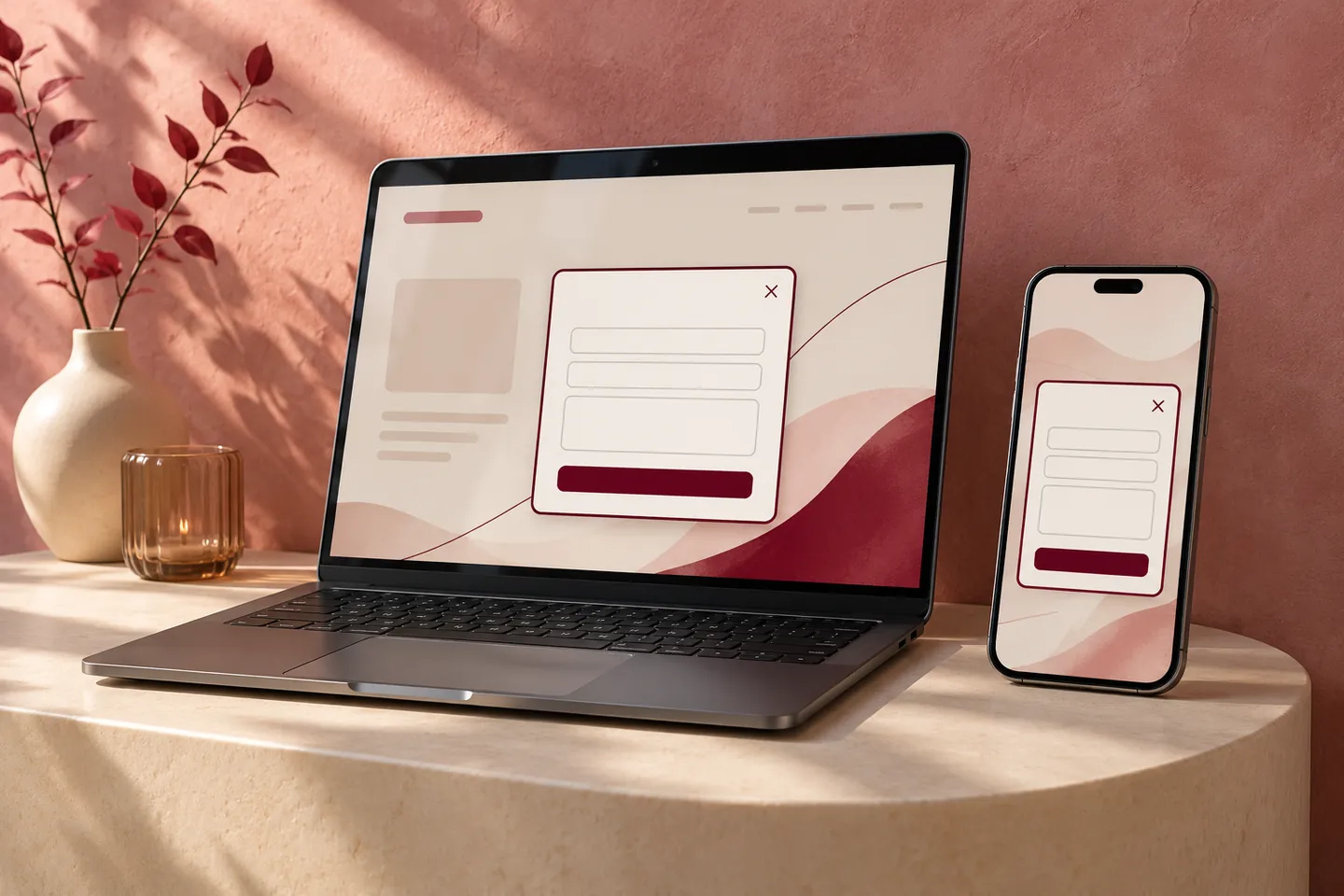
Editorial illustration of a desktop and mobile enquiry popup design.
A visitor clicks Request a quote on a service page and opens a short form without losing their place. On a phone, they should be able to fill it, see a clear result and close it easily. Those are the behaviours I would put in an Elementor popup brief before choosing how the form and popup should be built.
Choose the pages and the reason to open the form
Write down the action the visitor has chosen and what information they need before taking it. A quote button on a service page can open a short form with that service selected. A longer brief with file uploads and several decisions may work better on a dedicated page the visitor can bookmark.
Make a list of pages where the popup should be available and pages where the team already has another form. Elementor distinguishes where a popup is available, what triggers it and any additional display rules. Check your installed version and plan before committing to a specific control. Elementor’s popup display settings.
Keep the page readable on a phone
Start with a clear button the visitor chooses. If you use a timed prompt, check the page underneath, competing banners and whether the visitor continues to have easy access to the content. Google advises against promotional dialogs that obstruct the page. Google Search Central guidance on dialogs.
Open the form on a small phone and type into the lowest field with the keyboard visible. Check that the visitor can scroll to the submit button and close the panel at any point. If there are lengthy fields or confirmation steps, give the form enough scrolling space.
Test the keyboard and the confirmation state
Keyboard focus should move into the open dialog, reach its controls in order, and return to the trigger when it closes under normal conditions. Check Escape and the visible close button. Confirm the visitor can retry after a field error. W3C modal dialog pattern.
- Open the form using the quote button with a keyboard.
- Leave a required field empty and check where the error appears.
- Use an approved test destination to check what happens after an accepted submission.
- Close the popup and continue reading from the original button.
Keep enquiries identifiable after submission
Decide which team receives each enquiry, where it is recorded and which context travels with it. A sales team may need the chosen service, originating page and any project information needed to reply. Ask only for details that help with that next step.
If you measure leads, separate popup opens from accepted submissions. An open can help diagnose where visitors drop off. A confirmed submission can be checked against the saved record. See the Elementor form lead tracking guide for that test.
Send one page and a sample enquiry
Share your WordPress URL, the buttons that should open the popup, the required fields and the team that should receive the request. I can scope the Elementor implementation and the mobile, keyboard and submission checks needed to hand it over.