
Security headers are short instructions your server sends with every page. They tell the browser how to behave: always use HTTPS, refuse to show the page inside another site’s frame, limit where scripts can load from and how much to share when a visitor follows a link away. They cost almost nothing to send, and a missing header is one of the most common findings in a website security scan.
They are also easy to get wrong. A strict policy added in a hurry can break analytics, embedded videos or payment widgets. This guide explains the main headers in plain terms, how to check yours and how to introduce them safely.
Check which headers your site sends today
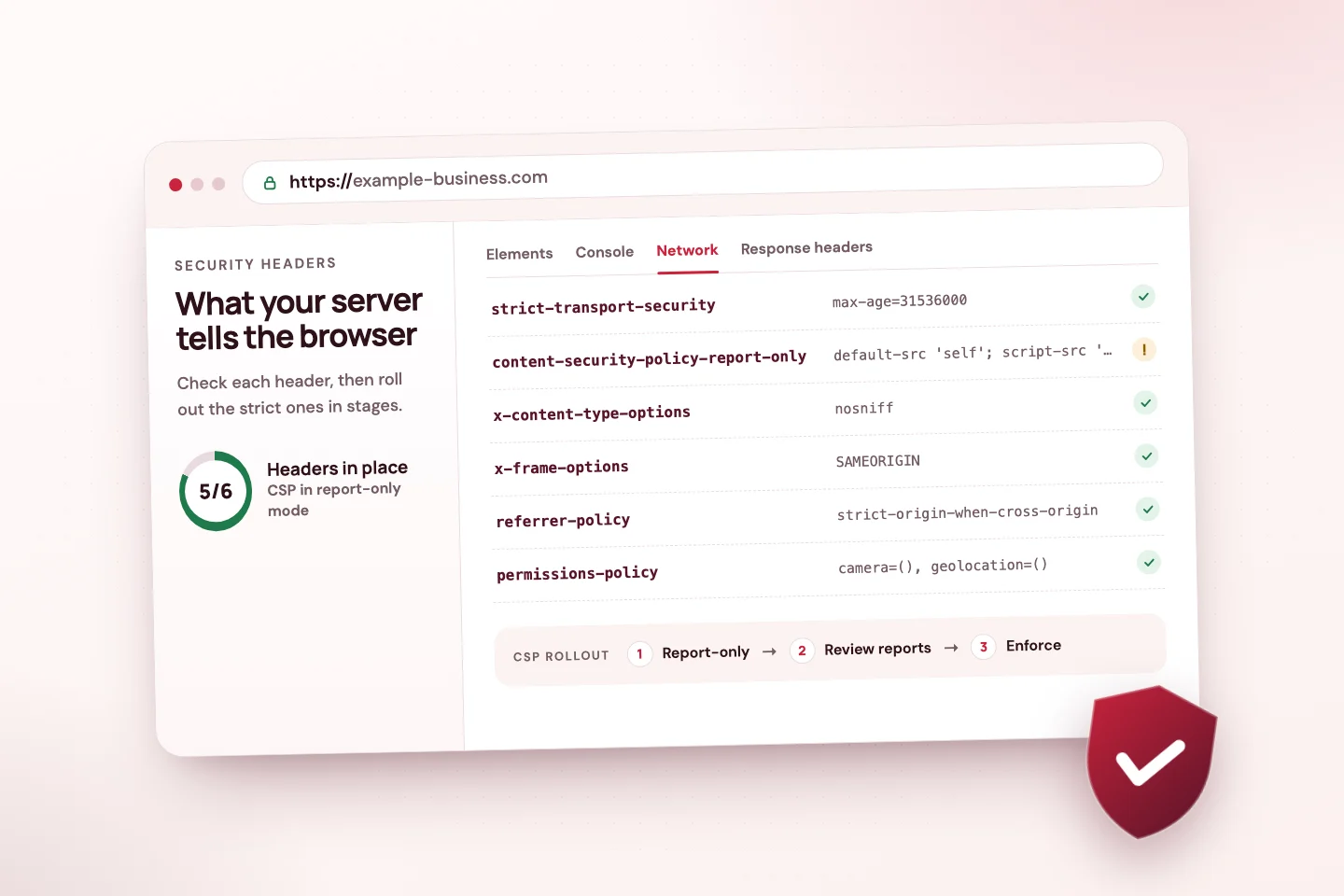
Start with evidence. Open your site in a browser, open the developer tools, choose the Network tab, reload the page and select the first document request. The Response Headers list shows what the server sent. You can also run a passive check with SecureScope, which reviews public signals such as HTTPS and headers without logging in or changing anything.
Check the home page, a typical content page and any page with forms or checkout. Headers can differ between pages, especially when a CDN, a caching plugin or a separate application serves part of the site.
Know what each header does
| Header | What it tells the browser | Typical starting point |
|---|---|---|
| Strict-Transport-Security (HSTS) | Only connect to this site over HTTPS for a set period. | A short max-age at first, increased once HTTPS works everywhere. |
| Content-Security-Policy (CSP) | Which sources may load scripts, styles, images, frames and other content. | Report-only mode first, with an allow-list built from real usage. |
| X-Content-Type-Options | Do not guess file types. Use the declared type. | nosniff |
| X-Frame-Options or CSP frame-ancestors | Whether other sites may display your pages in a frame. | SAMEORIGIN, or a frame-ancestors rule listing allowed sites. |
| Referrer-Policy | How much of the current page address to share with the next site. | strict-origin-when-cross-origin |
| Permissions-Policy | Which browser features, such as camera or location, the page may use. | Turn off the features your site never uses. |
These values are common defaults rather than a universal recommendation. The right values depend on what your site loads and embeds.
Roll out Content-Security-Policy in stages
CSP gives the most protection against injected scripts, and it is also the header most likely to break something. A typical business site loads scripts from analytics, tag managers, chat widgets, video embeds, fonts, maps and payment providers. Block one of them by accident and a form may stop sending or a checkout may fail.
Use the Content-Security-Policy-Report-Only header first. The browser reports what it would have blocked without blocking it. Collect those reports across real traffic for a week or two, build the allow-list and only then switch to enforcement. Keep a short note of why each source is allowed, so the next person who adds a marketing tag knows to update the policy.
Consider a fictional service business that switches on a strict policy on a Friday. On Monday the enquiry form looks normal, but submissions fail, because the form’s spam check loads a script from a domain the policy did not allow. Report-only mode would have shown that domain before anything broke.
Be careful with HSTS and subdomains
HSTS is valuable once every part of your site works over HTTPS. Browsers remember the instruction for the max-age you set, so a mistake persists. Begin with a short duration, confirm that every page, asset and subdomain loads over HTTPS, and only then extend it.
Add includeSubDomains only when you are sure that every subdomain, including old ones used for email tools or staging, has a valid certificate. Treat HSTS preloading as a separate decision, because removing a domain from browser preload lists is slow.
Decide where the headers are set
Headers can be added in several places: the web server configuration, the hosting control panel, a CDN or firewall, a WordPress security plugin or the application code. Choose one place and document it. Setting the same header in two layers can produce duplicate or conflicting values that are hard to diagnose.
On WordPress, a plugin is convenient, but server or CDN settings also cover static files and are not affected by plugin updates. Whichever you choose, test again after every hosting, CDN or caching change, because those changes can silently drop headers.
Keep headers in your maintenance checklist
Security headers are not a one-time task. A new marketing tool, a redesigned checkout or a hosting move can each require policy changes. Add a header check to your regular maintenance routine alongside updates, backups and uptime monitoring, and recheck after any change to scripts, embeds or infrastructure.
Common questions
Do security headers improve SEO?
They are not a direct ranking factor. HTTPS is a light ranking signal, and HSTS helps keep visitors on HTTPS. The main benefit is protecting visitors and your site from common browser-based attacks.
Can security headers stop my site being hacked?
No single header does that. Headers reduce the impact of certain attacks in the browser, such as clickjacking and injected scripts. Updates, strong access controls, backups and monitoring still do most of the work. If a site has already been compromised, start with a malware cleanup and review.
Will adding headers slow my site down?
No. Headers are a few lines of text in each response. The risk is not speed but blocking something legitimate, which is why a staged rollout matters.
Send your site for a header review
Share your website address, where it is hosted, whether it uses a CDN and the third-party tools it loads, such as analytics, chat and payments. I can review the current headers, propose values that fit your site and help you roll them out in report-only mode first, with a clear note of where each header is set.