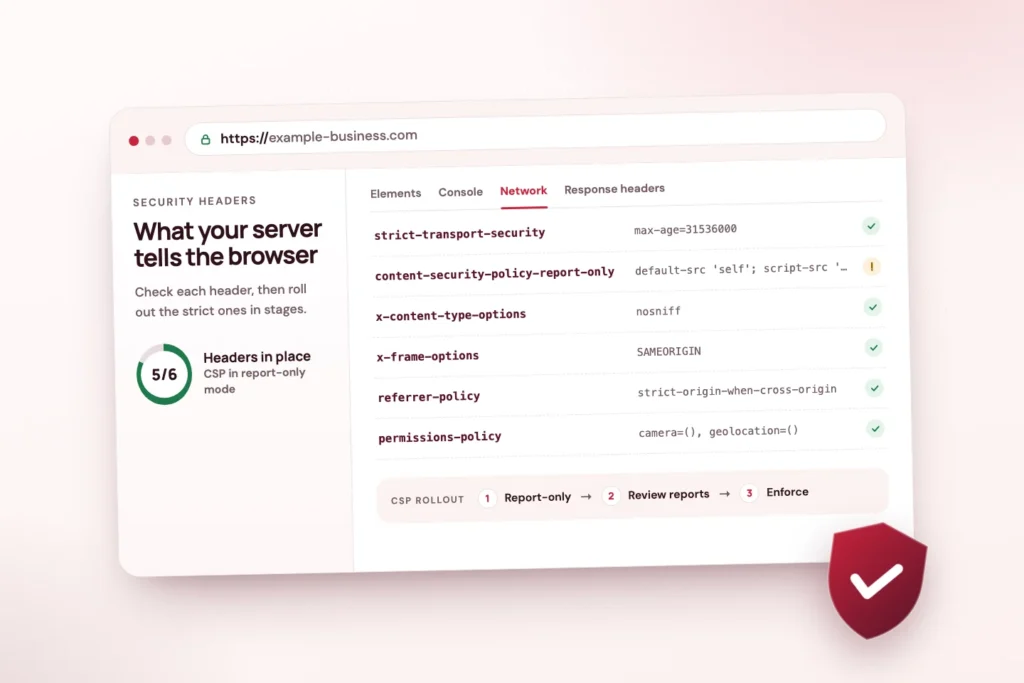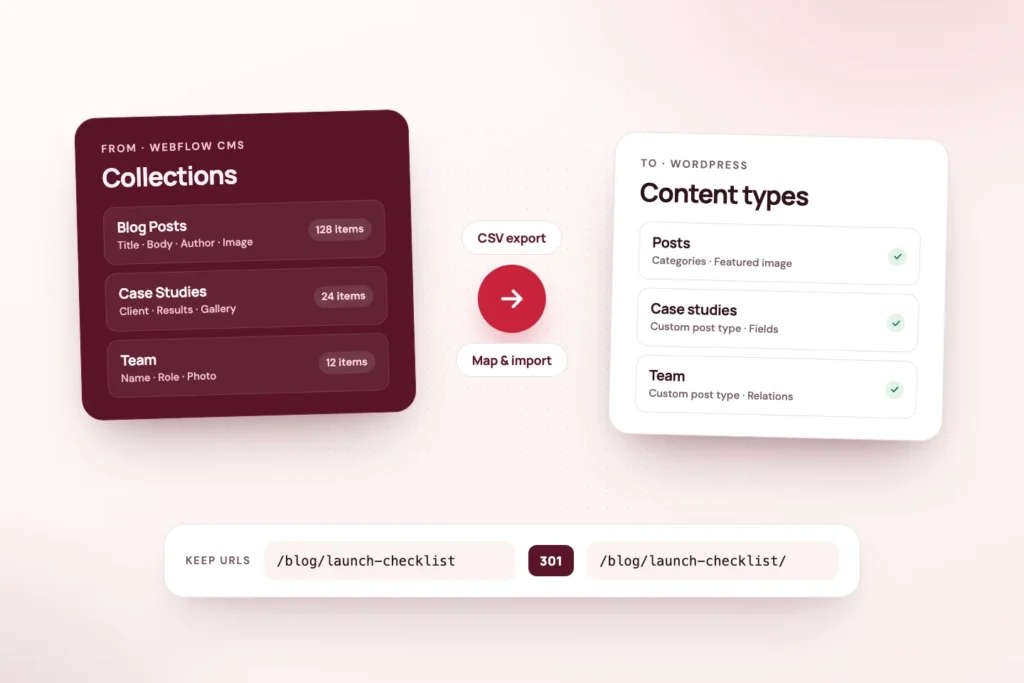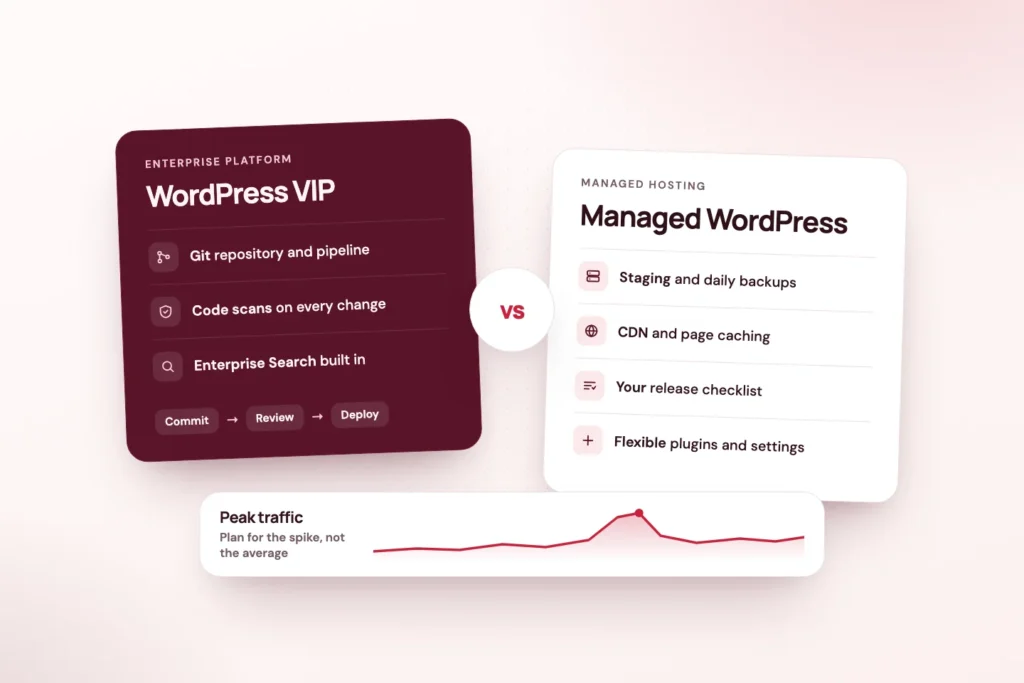


Illustrative workspace or concept artwork; not a photograph of a client office or a screenshot proving delivered project features.
An online checker reports “PHP version not disclosed”, but your website still works. That result is not proof of a broken checker, a current server or an outdated server. It means the public response did not provide enough evidence to identify the PHP version reliably.
If you own the site, the next step is authorised access rather than more guesswork. Use the free PHP update checker for the information it can verify, then follow the owner checks below. If an upgrade needs planning, my WordPress PHP upgrade service can review the environment and quote the work.
Understand what a public website check can show
Public checks can inspect information a website chooses to return. A proxy, firewall or server configuration may hide a technology header or return a response without a useful version. The visible homepage might also be served from a cache, while PHP runs behind it. None of those observations identifies a particular missing version.
The PHP manual documents the expose_php setting, which affects whether PHP advertises its presence in a response header. Do not change a production setting simply to satisfy a public checker. A hidden version is a limit on outside evidence, not a reason to label the site safe or unsafe.
Check WordPress Site Health with an authorised account
For a WordPress site you manage, open the dashboard and go to Tools, Site Health, then Info. Review the Server information and record the PHP version shown for that website. WordPress’s Site Health documentation explains the location and purpose of this technical information screen.
If your account does not have access, ask the site administrator or hosting owner for the relevant version information. Do not request somebody else’s password in a public message. A redacted screenshot or a short written confirmation may be enough for an initial conversation; a full diagnostic export can contain details the developer does not need yet.
Confirm which website the hosting setting belongs to
Hosting accounts can contain several websites, subdomains and staging environments. Record the domain next to the selected PHP setting. A version shown for a different site or a server-wide default may not establish what your production WordPress installation uses. Ask the host to clarify if the website and control panel appear to disagree.
Also distinguish an installed version from the version actively selected for the site. A hosting account may offer several branches. The question is which one serves this application now, which alternatives the host supports and whether required extensions are available. Keep the answer with the date it was checked.
Compare the version with current support information
Use PHP’s official supported-versions table to distinguish active support, security-only support and end of life. Those categories describe the release branch; they do not establish whether every installed plugin is compatible or whether an individual website has been compromised.
Do not treat a warning as an instruction to select the highest version available immediately. The appropriate target also depends on WordPress, themes, plugins, custom code and the host’s supported configuration. If the host supplies its own extended maintenance, ask exactly what that covers rather than assuming it is identical to upstream PHP support.
Do not publish a diagnostic page to prove the result
A site owner should not need to leave a public diagnostic page exposing detailed server configuration just to get an initial upgrade quote. Prefer the hosting dashboard or an authorised WordPress information screen. Share only what the developer needs through the project’s agreed private channel.
If a developer requests additional diagnostics, agree their purpose, access restriction and removal process first. A useful investigation should answer a particular compatibility question. It should not create an abandoned public file or require disabling security controls so an external tool can display a version number.
Turn the version check into a compatibility brief
Record your current version, the proposed target, hosting provider, WordPress version, active theme and business-critical plugins. List the journeys that must keep working: enquiries, booking requests, member access, scheduled publishing or an API connection. Note existing faults so they are not mistakenly attributed to the upgrade later.
Ask for an assessment that distinguishes straightforward updates from unsupported plugins or custom-code repairs. A version number alone cannot establish the effort. A sensible quote should identify its assumptions, the environment used for testing and any vendor decision needed before the production setting changes.
Agree testing and a release decision before changing production
For business-critical sites, a controlled test environment helps reveal compatibility failures before a production switch. Agree how it will be prepared, which data and integrations it can use, and what constitutes a pass. Require a clear decision about proceeding when an essential feature fails.
Confirm the recovery approach with the hosting owner and authorise any required recovery copy explicitly. Do not assume every maintenance arrangement includes the same protection or response time. After an approved change, check the selected PHP version and the agreed visitor journeys again; a successful homepage load is only one part of acceptance.
Send the evidence for a scoped upgrade proposal
For an initial review, send the website address, the version confirmed through authorised access, the host’s available target versions and a list of essential functions. Explain whether you need only a compatibility review, implementation of an agreed upgrade or investigation of an existing error. Avoid sending credentials in the first enquiry.
Use the PHP checker to organise an initial support-date check when you know the version, then discuss the required work through WordPress PHP upgrades and compatibility testing. The aim is a decision supported by evidence, not a guessed version or an unsupported claim that every website needs the same repair.