
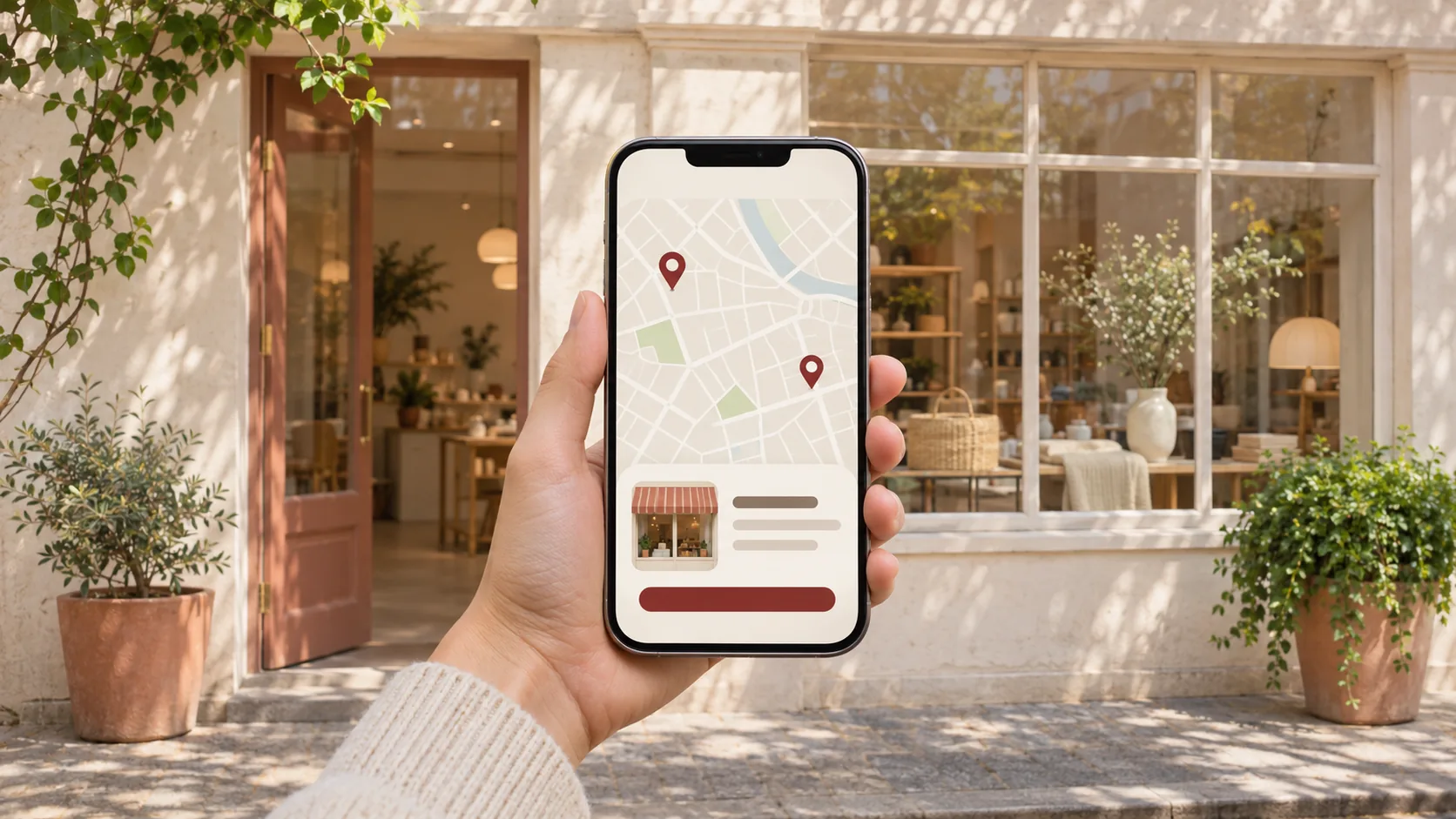
Illustrative shopfront and fictional store finder.
A shopper opens your Shopify store and wants to know which branch is near them, whether it is open and where to check pickup for an item. A useful store locator gives them a direct answer about the location and a clear route to any product-specific decision.
Start with the records your staff can maintain. Decide which branches appear, which details change, and which information comes from your pickup setup. Those decisions shape whether you need a store list, a searchable map or a more connected feature.
Decide what people need to do from the locator
Ask the retail team which calls the website should handle. Regular questions might be directions, weekend hours, a collection desk or whether a branch carries a category. Prioritise the details a shopper needs before leaving for the store.
Choose a useful first view. Three local branches can often be found from a short list with neighbourhood names and direction links. A larger network may need city or postcode search, labelled region filters and a list a visitor can operate with a keyboard.
Keep a location record that staff can edit
Agree the display name, address, contact details, regular hours, exceptions and direction link for each branch. Record an internal location reference so a branch name can change without losing the connection to other systems. Set access for the team that updates hours and closures.
A theme can use Shopify metaobjects for shared structured content when they suit the implementation. Decide which details are edited there and how they relate to the operational location used for fulfilment. For implementation options, review Shopify’s metaobjects documentation.
Give the map and the list the same useful details
For example, a fictional brand has shops at North Square and West Arcade, plus a showroom by appointment. Each record lists the address, hours and route to book or get directions. In search results, the showroom clearly shows its appointment requirement. A visitor can choose it from the list as well as the map.
Test a near match, a search outside the service area and a location with temporarily changed hours. Give the visitor a way to see all branches if the search has no result. Include clear accessible names for pins or provide a complete list of equivalent links.
Connect pickup to the selected product and location
Pickup status depends on the product variant, location and store setup. Some stores can transfer the item to a pickup location. Use the supported availability information if the storefront displays it and agree how the shopper sees the specific variant and pickup estimate. See Shopify’s theme pickup availability reference.
Test one pickup-enabled branch, one branch with pickup unavailable and one variant change. If fulfilment is part of the project, review the Shopify pickup setup guide and the multi-location pickup planning article.
Test directions, edits and fallback states
Have staff edit a Sunday opening time on the test theme and check where the change appears. Open directions on a phone, use keyboard navigation on the list and try the locator with location permission unavailable. Include a store with a missing photo or incomplete optional details.
Agree which parts belong to the first release. Directions and an editable location list can launch as a defined scope, and pickup or inventory display can be estimated once product and fulfilment requirements are known.
Send the existing store list and pickup goals
Share your store URL, location count, example branch details and the product or pickup questions visitors ask most often. Include your theme name and how staff currently update the branch information. I can review the structure and quote a locator that suits your catalogue and retail workflow.