
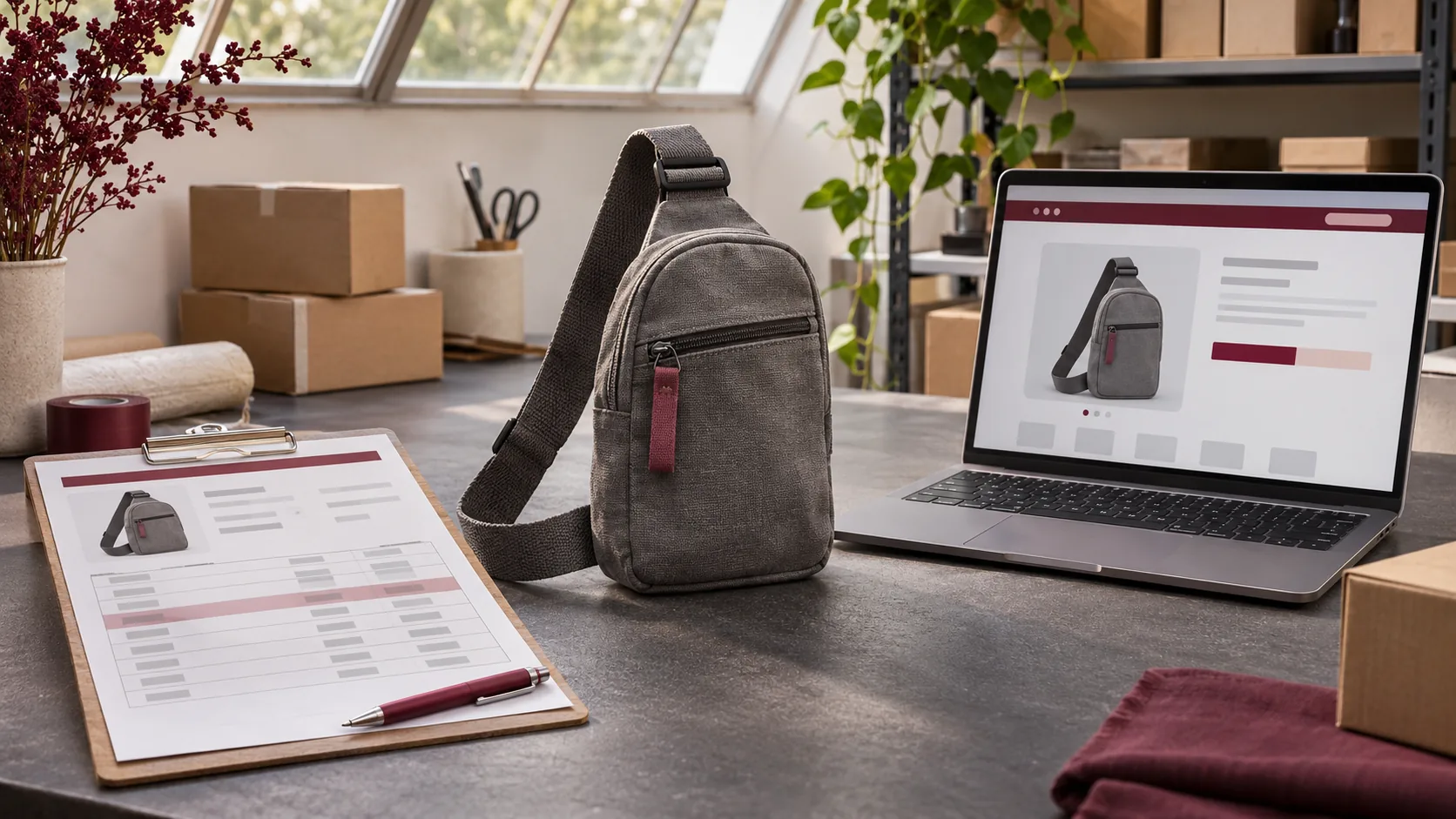
Illustrative product page and catalogue data for a fictional store.
Merchant Center flags a product price mismatch. You open the Shopify product in admin and the price looks right. The missing piece is often the exact version of the item Google reviewed. Your product can have several variants, prices for different markets and a sale that starts or ends at a specific time.
Start with one affected item. Follow its submitted URL, identify the selected variant, and record the amount and currency at each step. That comparison gives you a repair brief for the store, theme or product data source.
Record one error and the product link it refers to
Open the affected item in Merchant Center and record the issue text, item ID, submitted link, target market and submitted price. Google’s price troubleshooter distinguishes a page crawl price mismatch from a regional price mismatch. Record the listed issue so the investigation starts with the right market and product. See Google’s price issue guide.
In Shopify, identify the corresponding variant and its price for that market. Include a timestamp when saving the details. The useful comparison is between the submitted item and the same item as a shopper or crawler can see it.
Follow the same variant from the link to the page
Open the submitted product link in a clean browser session. Record the options selected on arrival, their price and the currency shown. If the product has variants, check that the link opens the one Merchant Center lists and that the page updates the amount when the option changes.
Ask the developer to compare the visible price with the product information the theme outputs on that URL. A theme can render one variant in the page and expose another in structured data. Google’s product data guidance explains the expected price consistency across the offer, landing page and checkout. See the price attribute requirements.
Compare the submitted and displayed values
Suppose a fictional store sells a canvas sling bag in two sizes in Great Britain. Merchant Center has an item for the small bag at £54. The shared product link opens the large bag at £68 in a new session. The team can reproduce the difference before touching the item data.
| Check | What the team sees | What to investigate |
|---|---|---|
| Merchant Center item | Small bag, £54 GBP. | Confirm the item ID and the source that submitted it. |
| Submitted landing page | Large bag selected, £68 GBP. | Review the link and the theme’s initial variant selection. |
| Small bag selected on the page | Visible price changes to £54 GBP. | Check the price data for that variant and its cart line. |
The brief should ask for a URL or selection fix that opens the small bag with its £54 price. Once the link selects the right variant, compare the displayed amount and the price Google can read for that URL. Use a cart preview or approved checkout test to check the same variant and market.
Check market pricing and checkout currency
Write down which country, currency and market the product should use. A browser with an existing currency preference can show a different view from the submitted link. Test the target market under the conditions the customer will see on arrival and follow the same product into the cart.
Check whether market settings, a theme currency display or a pricing app affects the result. Capture the amount and currency as a pair. A correct-looking number in a different currency gives the team a different issue to resolve.
Separate the base price from an active sale
Record the regular advertised price, the sale price shown for the selected variant and the time the offer should run. Check what the product data submits for price and sale price, and compare it with the theme and cart at that moment.
When the sale starts or ends, review the same variant again. If a promotion depends on a code or a special customer group, verify its eligibility and display rules before changing the public item price. See Google’s sale price requirements.
Find which system needs the change
Trace the item to the data source that manages it. If the Shopify Google & YouTube channel is responsible, review the variant and its sync status there. If a separate feed manages the item, identify the fields it reads and whether another source overrides them. Shopify describes channel status and product errors in its product syncing guide.
Scope a storefront fix when the link, selected variant or price markup is wrong. Scope a data correction when the store shows the intended offer and the submitted item is outdated or mapped to the wrong variant. For a broader setup project, use the Shopify product feed development guide to map the owners before changing the sync.
Verify the fix on a small set of products
Recheck the affected link in a clean session with the correct market. Compare the product data, visible variant price and cart line. Then select a sibling variant and review one sale item that shares the same theme logic. Check item status in Merchant Center after the relevant source has processed the changes.
For a repair quote, send the affected product URL, variant, target country and exact issue label. A redacted screenshot showing the submitted amount and currency helps identify whether the work belongs in the theme, market settings or feed mapping.