
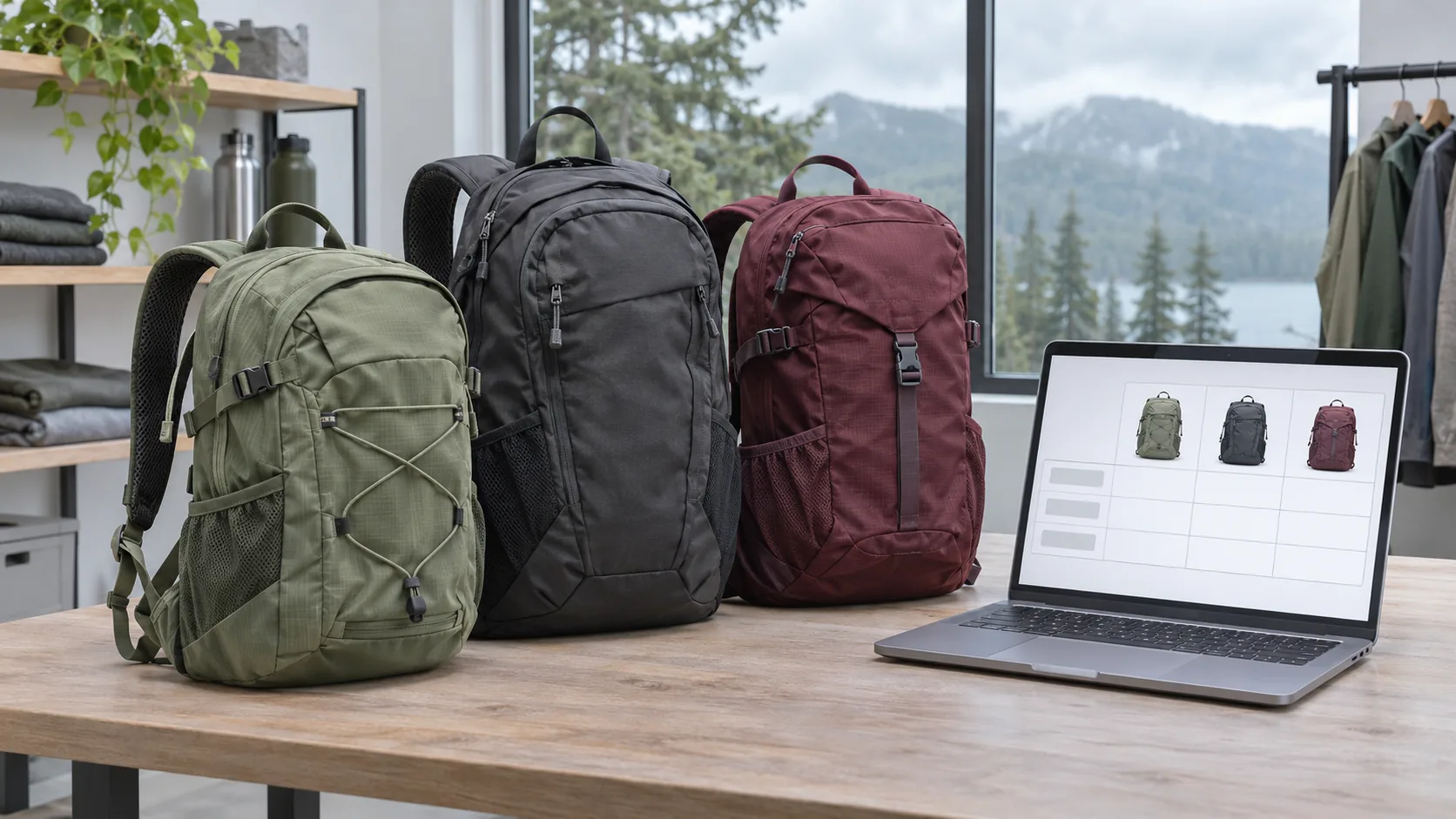
Illustrative daypack range and a fictional product comparison table.
When three products look similar in a collection, the customer has to open several tabs to work out which one suits them. A Shopify product comparison table can bring meaningful differences into one view. For a range of daypacks, those differences might be capacity, dimensions, laptop sleeve size and empty weight.
Start with the buying decision and the product data your team can maintain. A useful comparison for one collection is an achievable first release, and it gives staff a repeatable way to add new products to that range.
Choose the attributes that change a purchase decision
Ask sales or support which product questions appear repeatedly. In a daypack range, a commuter cares whether a 15-inch laptop fits and a traveller may need the outer dimensions. Pick a small set of comparable facts, with descriptions for terms that customers might misunderstand.
Write down the unit and the source of each value. A recorded capacity of 18 litres and a product description that says “spacious” serve different purposes. Ask a merchandiser to review a first table with actual values and confirm which differences a visitor can see at a glance.
Choose a curated table or a customer-selected comparison
A curated table can show three recommended alternatives on a product page. Editors can choose the models to feature and keep the rows relevant to the range. This works well when the catalogue has a handful of signposted choices.
A customer-selected compare feature allows shoppers to add items from a collection and build their own table. Scope that version with a product limit, a removal action, shared attributes and rules for comparing across collections. Include what happens after applying filters or changing products on a phone.
Store facts on the products your team edits
Define shared attributes as Shopify product metafields where appropriate. A structured field gives the team a dedicated place to enter the value and gives the theme a consistent way to read it. Use variant data if a fact genuinely changes with a shopper’s option. For instance, weight may differ with a pack’s size while its material stays the same.
Check which field types fit the data and which Shopify theme settings can use those values. Review the existing theme before deciding how much custom presentation the table requires. See Shopify’s metafield definitions and dynamic data sources.
Decide how the design will handle gaps and variants
Pick a clear label for missing details, such as “Not listed”. Show an explicit value for a confirmed absence, such as “No laptop sleeve” when the catalogue records that fact. Ask the store team who can supply missing measurements and when they will be reviewed.
If price or stock changes by variant, decide whether the table shows a price range, a selected variant’s value or a link to choose an option on the product page. Set the example with a sold-out size so the design team can review it with real wording.
Make the comparison usable on a phone
Keep the product names and attribute labels associated when the layout narrows. A scrollable table with proper headers is one option. A short list of paired product details can be easier to scan for a small range. Try both layouts against an actual question, such as finding the lightest pack that fits a particular laptop.
Check focus order, visible controls and product detail links on the smallest screen you support. If a shopper can add or remove items, give the compare controls clear names. Test with long product names, more than one price format and the data gaps found in your sample catalogue.
Give staff a way to keep it accurate
Document which attributes and units to use, where to enter them and how to preview a new product. Agree what staff should do with archived models and discontinued variants. Ask a store editor to update a sample fact and confirm it reaches the correct row without a developer editing the layout.
Plan the first release on an unpublished theme and list the products you’ll test. The Shopify metaobjects guide covers reusable product information if you also need shared care or buying guides. Keep one named owner for each type of data you publish.
Send a small sample catalogue to begin
Share the collection URL, three products you want customers to compare and the questions buyers ask before choosing. If your team already records specifications in another platform, include an anonymised sample of the fields. I can recommend a first table or a customer-selected feature and quote the theme and data work needed for that scope.